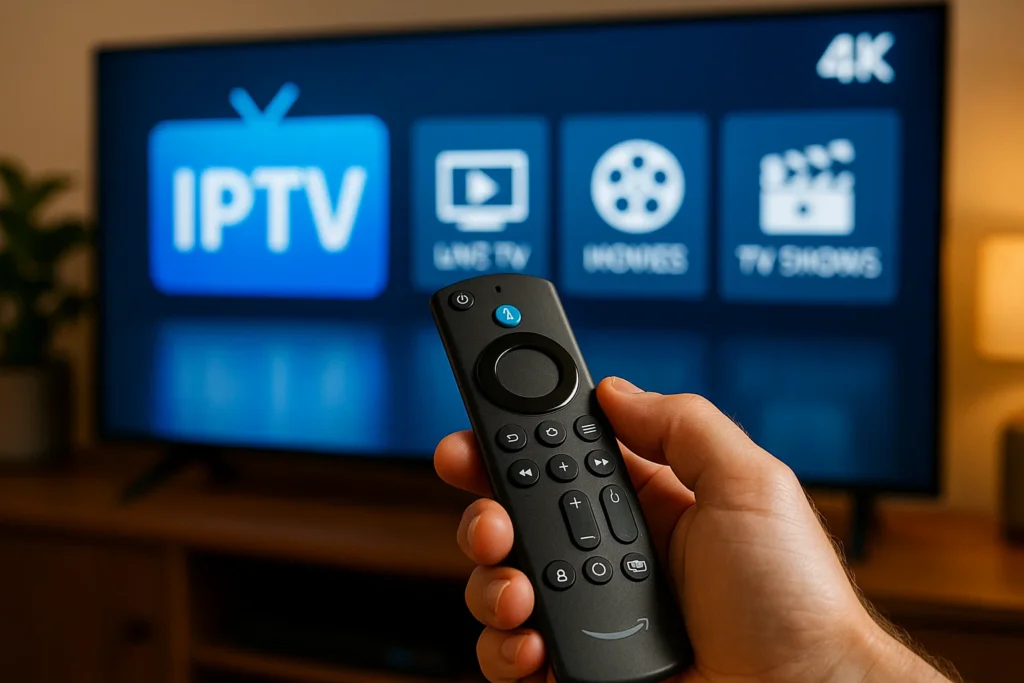
The Amazon Firestick is one of the most popular devices for streaming IPTV due to its affordability, portability, and ease of use. With the right setup, you can access thousands of live TV channels, movies, and shows from around the world.
In this guide, we’ll walk you through the steps to install IPTV on Firestick in 2025, along with troubleshooting tips and recommendations for a smooth streaming experience.
Step 1: Enable Apps from Unknown Sources
Since most IPTV apps aren’t available on the Amazon App Store, you’ll need to allow installations from unknown sources.
- Go to Settings > My Fire TV > Developer Options.
- Turn on Apps from Unknown Sources.
- Confirm by selecting Turn On.
(Note: Enabling this allows third-party app installations, so only download trusted IPTV apps.)
Step 2: Install the Downloader App
The Downloader app lets you sideload IPTV apps by entering a URL.
- From the Firestick home screen, search for “Downloader”.
- Select and install the app.
- Open Downloader and grant necessary permissions.
Step 3: Enter the IPTV App URL
Now, you’ll use Downloader to install your preferred IPTV app (e.g., TiviMate, IPTV Smarters, or Smart IPTV).
- Open Downloader and enter the app’s download URL (e.g.,
https://example.com/iptv.apk).- Make sure to use the official or trusted source.
- Click Go to download and install the APK.
- Once installed, open the app.
Step 4: Set Up IPTV with M3U Link or Xtream Codes
Most IPTV services provide either an M3U playlist URL or Xtream Codes login.
Option 1: Using an M3U Link
- Open your IPTV app and select “Add Playlist”.
- Enter your M3U URL (provided by your IPTV provider).
- Save and load the playlist to access channels.
Option 2: Using Xtream Codes
- Choose “Xtream Codes API” in the app.
- Enter your username, password, and server URL (from your provider).
- Click “Add User” to load your channels.
Common Issues & How to Fix Buffering
- Slow Internet? Use a wired connection or ensure a strong Wi-Fi signal.
- App Crashes? Clear cache in Settings > Applications > Manage Installed Apps.
- Buffering? Lower video quality or use a VPN (some ISPs throttle IPTV traffic).
Bonus: Use a VPN for Privacy & Better Streaming
Since some IPTV services may be in a legal gray area, a VPN helps protect your privacy and avoid ISP throttling.
Recommended VPNs for Firestick:
- ExpressVPN (Fast & reliable)
- NordVPN (Strong security)
- CyberGhost (Easy to use)
Install your VPN from the Amazon App Store, connect to a server, and enjoy secure streaming.
Final Thoughts
Now you know how to install IPTV on Firestick in 2025! Follow these steps carefully, use a reputable IPTV provider, and consider a VPN for the best experience.
Got questions? Drop them in the comments below!
📌 Want more Firestick tips? Subscribe to our newsletter for the latest guides!

good