Best IPTV Web Player 2025 | Stream Live TV & VOD Online
Introduction to IPTV and Web Players What is IPTV? IPTV (Internet Protocol Television) delivers TV content over the internet instead of cable/satellite. In 2025, it’s the top choice for streaming live TV, on-demand videos, and global channels with features like: Learn more about how IPTV works. Why Web Players Dominate IPTV Streaming IPTV web players let you stream directly in browsers—no apps needed. Key 2025 advantages: Try our recommended IPTV web player. Must-Have Features in 2025 Feature Why It Matters Multi-Format Support Plays M3U, Xtream Codes, JSON EPG Integration Shows schedules & program info 4K/HDR Streaming Cinema-quality visuals VPN Compatibility Bypasses geo-blocks See the full feature breakdown. Top 5 IPTV Web Players Compared View all recommended players How to Set Up in 3 Steps Detailed setup guide Pro Streaming Tips Legal Considerations ⚠️ Only use licensed services like: Avoid illegal streams to prevent: Future Trends Explore 2025 IPTV trends FAQ Q: What devices work with web players?A: All browsers (Chrome, Safari, Firefox) on: Q: Can I record shows?A: Yes! Learn about cloud DVR features. More questions? Visit our support center. Ready to Start Streaming? 👉 Try Planiptv Web Player Now
Introduction to IPTV and Web Players
What is IPTV? IPTV stands for Internet Protocol Television, a method of delivering TV content over the internet instead of traditional cable or satellite. This technology allows users to stream live TV, on-demand videos, and media libraries on any internet-connected device. In 2025, IPTV has become the leading choice for digital entertainment, offering features like Catch-Up TV, Video on Demand (VOD), and interactive guides. The flexibility of IPTV has made it a superior alternative to outdated cable services. Want to explore IPTV further? Check out our best IPTV services for 2025. Why Web Players Are Revolutionizing IPTV Streaming IPTV web players let you stream content directly in your browser—no downloads or installations needed. In 2025, with faster internet and smarter browsers, web players offer: ✅ Instant streaming (just paste your M3U or Xtream Codes link)✅ Modern UI (similar to Netflix or Hulu)✅ Cross-device compatibility (works on laptops, smart TVs, tablets) Learn how to set up your IPTV web player in minutes. Key Features of a Quality IPTV Web Player 1. Multi-Format Support A top-tier IPTV web player should support: This ensures compatibility with most IPTV providers. 2. EPG Integration An Electronic Program Guide (EPG) is a must-have in 2025. It shows:📺 Current & upcoming programs⏰ Schedule details⭐ Ratings and descriptions 3. User-Friendly Interface The best web players offer:🎨 Customizable themes (dark/light mode)⚡ Fast navigation📱 Responsive design for all devices See our recommended IPTV players for 2025. IPTV Web Player vs. Traditional Apps: Which is Better? Feature IPTV Web Player IPTV App Installation None required Needs download Updates Automatic Manual Compatibility Works on any browser OS-specific Security No app permissions May request device access For most users, web players win due to convenience and accessibility. How to Use an IPTV Web Player Step-by-Step Setup Need help? Read our full setup guide. Security & Legal Considerations ⚠️ Always use a VPN to hide your IP and avoid ISP throttling.⚠️ Avoid illegal streams—stick to licensed providers. For secure streaming, check out our VPN recommendations. Future of IPTV Web Players The next wave of IPTV includes:🚀 AI-powered recommendations📡 5G-enabled 4K/8K streaming🗣️ Voice-controlled browsing Stay updated with the latest IPTV trends. FAQs 1. What devices support IPTV web players? Any device with a browser: PC, Mac, Android, iOS, Smart TVs. 2. Do I need a subscription? Yes, you need an IPTV subscription for content access. 3. Can I watch live sports? Absolutely! Many IPTV services offer sports streaming in HD. 4. Are free IPTV web players safe? Only if they’re trusted and legal. Avoid shady links. 5. How to reduce buffering? For more tips, visit our troubleshooting guide. Final Thoughts IPTV web players are the future of streaming—lightweight, flexible, and packed with features. Whether you’re a casual viewer or a business, they offer unmatched convenience. Ready to start? Explore Planiptv’s web player solutions today!
Choosing the Right Device for IPTV Streaming: Smart TVs, Firestick & More
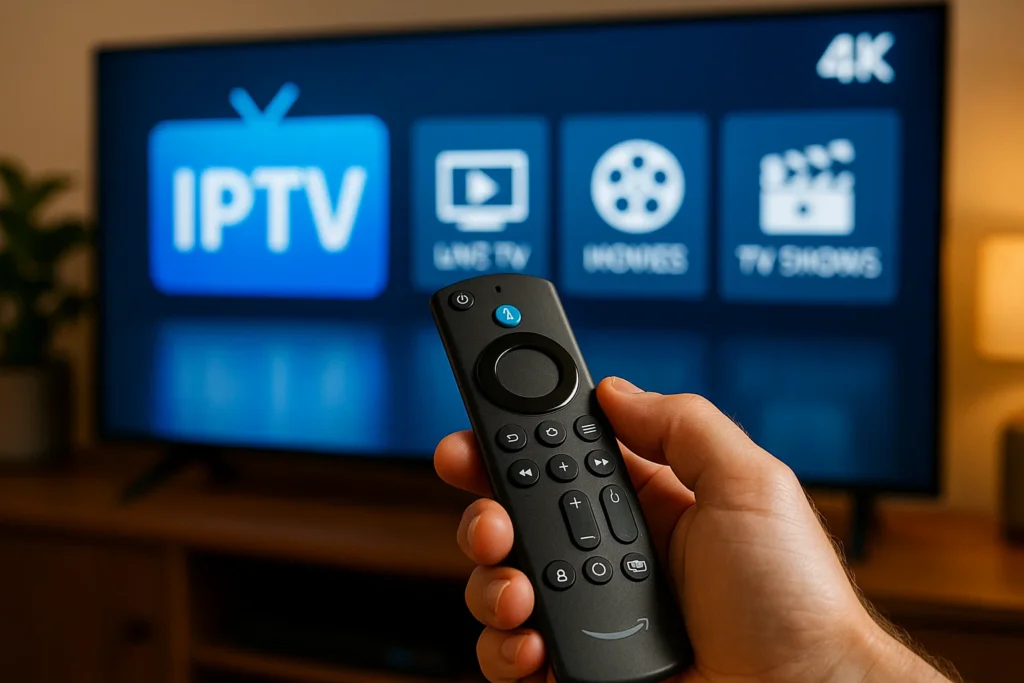
The Importance of Choosing the Right Device for IPTV While IPTV itself is a fantastic service, the device you use to stream the content plays a huge role in the quality of your experience. The right device can enhance streaming quality, reduce buffering, and provide access to additional features, making the viewing experience more enjoyable. The wrong device, however, could result in low-quality streaming, lag, or a lack of compatibility with the IPTV service you want to use. Choosing the right IPTV device depends on various factors, such as your existing setup, budget, and desired features. It’s essential to consider the device’s compatibility with IPTV services, ease of setup, performance, and additional functionality like support for apps or smart features. Popular Devices for IPTV Streaming Smart TVs Smart TVs have become an essential part of the modern home entertainment system. They are equipped with built-in internet connectivity and app stores, allowing users to install various apps, including those for IPTV streaming. With a Smart TV, you can access streaming services like Netflix, YouTube, and even IPTV providers directly without the need for any additional devices. Advantages of Using Smart TVs for IPTV One of the biggest advantages of using a Smart TV for IPTV streaming is convenience. You don’t need extra devices like streaming sticks or set-top boxes. With IPTV apps available on platforms like Samsung Smart Hub, Android TV, or LG’s webOS, you can directly access IPTV services through your TV’s user interface. Smart TVs also offer high-definition picture quality, with many models supporting 4K resolution. This ensures that you get the best possible viewing experience when streaming IPTV channels or movies. Additionally, Smart TVs are generally easy to set up, and many come with built-in Wi-Fi, so you don’t have to worry about connecting external cables. How to Set Up IPTV on a Smart TV Setting up IPTV on a Smart TV is straightforward, especially if the TV has a built-in IPTV app. Most Smart TVs have an app store where you can download popular IPTV apps like IPTV Smarters, SS IPTV, or TiviMate. Amazon Firestick Amazon Firestick is one of the most popular devices for streaming IPTV. It’s an affordable, portable solution that can turn any regular TV with an HDMI port into a Smart TV. The Firestick offers access to popular streaming apps like Netflix, Hulu, and Amazon Prime Video, but it also supports a wide range of IPTV apps. Benefits of Using Firestick for IPTV Streaming One of the main benefits of using Firestick for IPTV is its ease of use. It’s compact, inexpensive, and can be set up in minutes. It’s also very versatile, supporting a wide variety of apps and services, including many popular IPTV providers. With Firestick, you can stream content in Full HD, and many versions of the device even support 4K resolution. This makes it an ideal choice for those who want a cheap, yet high-quality IPTV streaming experience. Moreover, Firestick integrates well with Amazon Alexa, so you can use voice commands to control the device. Step-by-Step Guide to Set Up IPTV on Firestick Setting up IPTV on a Firestick is simple and quick. Here’s how: Roku Roku is another popular streaming device, known for its ease of use and access to a wide range of streaming services. While Roku doesn’t have a dedicated IPTV app, it’s still possible to use third-party apps to access IPTV content. Roku and IPTV Streaming: Compatibility and Features Roku provides access to numerous streaming services, but IPTV is not natively supported. However, you can install private IPTV apps via the Roku channel store or sideload third-party apps using a method called screen mirroring from another device. Roku’s user interface is simple, making it easy to navigate between live TV, on-demand content, and other streaming services. Additionally, Roku devices are affordable and widely available, making them a good option for those who want to experiment with IPTV streaming on a budget. How to Stream IPTV Using Roku Streaming IPTV on Roku involves a few extra steps compared to other devices: Android TV Boxes Android TV Boxes are versatile, cost-effective devices that run on the Android operating system. These devices connect to your TV via HDMI and offer a complete Android experience, allowing you to install various apps, including IPTV services. Why Choose Android TV Boxes for IPTV? Android TV Boxes are perfect for users who want a customizable IPTV experience. You can install nearly any IPTV app, including premium services or free apps. Additionally, many Android TV Boxes support 4K streaming, providing excellent picture quality. These boxes also come with a variety of ports, including USB and HDMI, allowing you to connect external devices like hard drives or gaming controllers. With Android TV Boxes, you get complete control over your IPTV setup, from the apps you choose to the content you access. Setting Up IPTV on an Android TV Box To set up IPTV on an Android TV Box: Factors to Consider When Choosing a Device for IPTV Choosing the right device for IPTV streaming isn’t just about picking the most popular or affordable option; it’s about matching the device to your needs. Whether you’re after the highest streaming quality, the best compatibility with services, or just something easy to set up, here are the key factors to consider before making your decision. Device Performance and Streaming Quality The performance of your chosen device is crucial to ensuring a smooth and enjoyable IPTV streaming experience. It’s essential to focus on two main performance factors: processing power and streaming quality. Device Compatibility with IPTV Services Before selecting an IPTV device, it’s crucial to make sure it is compatible with your IPTV service provider. Some IPTV services may only work with certain devices or apps, so doing a little research on compatibility is important. Ease of Use and Setup Ease of use is another significant factor when selecting an IPTV device. A simple, user-friendly interface will help you navigate through content without unnecessary frustration. Cost of Devices and
How to Install IPTV on Firestick: A Step-by-Step Guide (2025)
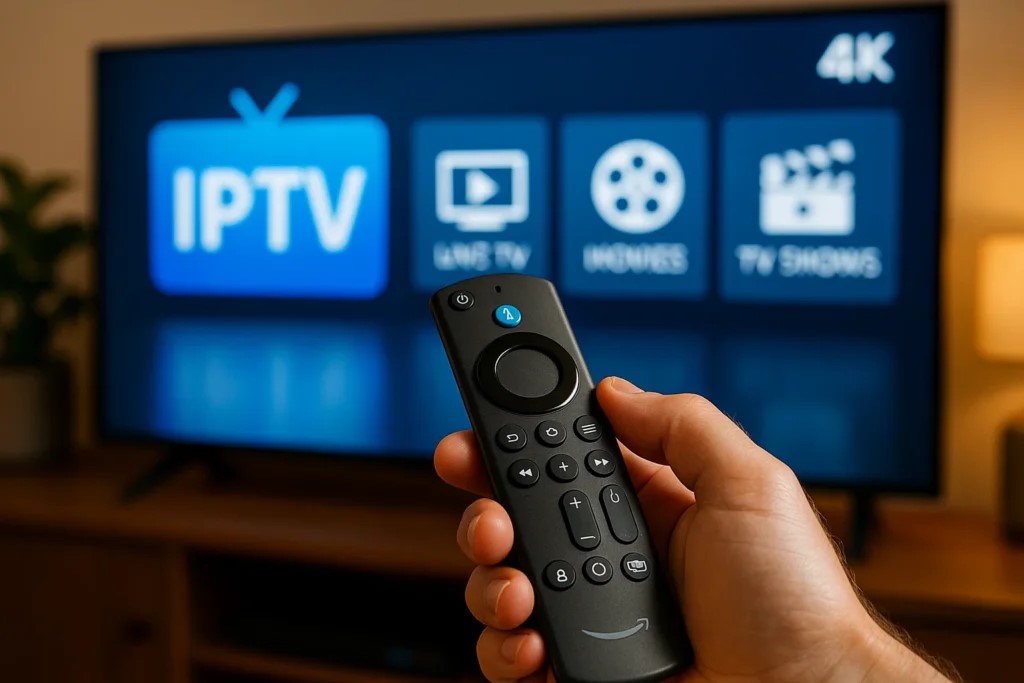
The Amazon Firestick is one of the most popular devices for streaming IPTV due to its affordability, portability, and ease of use. With the right setup, you can access thousands of live TV channels, movies, and shows from around the world. In this guide, we’ll walk you through the steps to install IPTV on Firestick in 2025, along with troubleshooting tips and recommendations for a smooth streaming experience. Step 1: Enable Apps from Unknown Sources Since most IPTV apps aren’t available on the Amazon App Store, you’ll need to allow installations from unknown sources. (Note: Enabling this allows third-party app installations, so only download trusted IPTV apps.) Step 2: Install the Downloader App The Downloader app lets you sideload IPTV apps by entering a URL. Step 3: Enter the IPTV App URL Now, you’ll use Downloader to install your preferred IPTV app (e.g., TiviMate, IPTV Smarters, or Smart IPTV). Step 4: Set Up IPTV with M3U Link or Xtream Codes Most IPTV services provide either an M3U playlist URL or Xtream Codes login. Option 1: Using an M3U Link Option 2: Using Xtream Codes Common Issues & How to Fix Buffering Bonus: Use a VPN for Privacy & Better Streaming Since some IPTV services may be in a legal gray area, a VPN helps protect your privacy and avoid ISP throttling. Recommended VPNs for Firestick: Install your VPN from the Amazon App Store, connect to a server, and enjoy secure streaming. Final Thoughts Now you know how to install IPTV on Firestick in 2025! Follow these steps carefully, use a reputable IPTV provider, and consider a VPN for the best experience. Got questions? Drop them in the comments below! 📌 Want more Firestick tips? Subscribe to our newsletter for the latest guides!